PeakUI Studio
An IDE for SwiftUI, on PeakOS.
Studio opens a SwiftUI project, checks it the way swiftc would, previews it on a Mac window, a phone, an iPad and a foldable, runs it, and commits it. It is itself a SwiftUI app, run by PeakUI. No Mac needed.
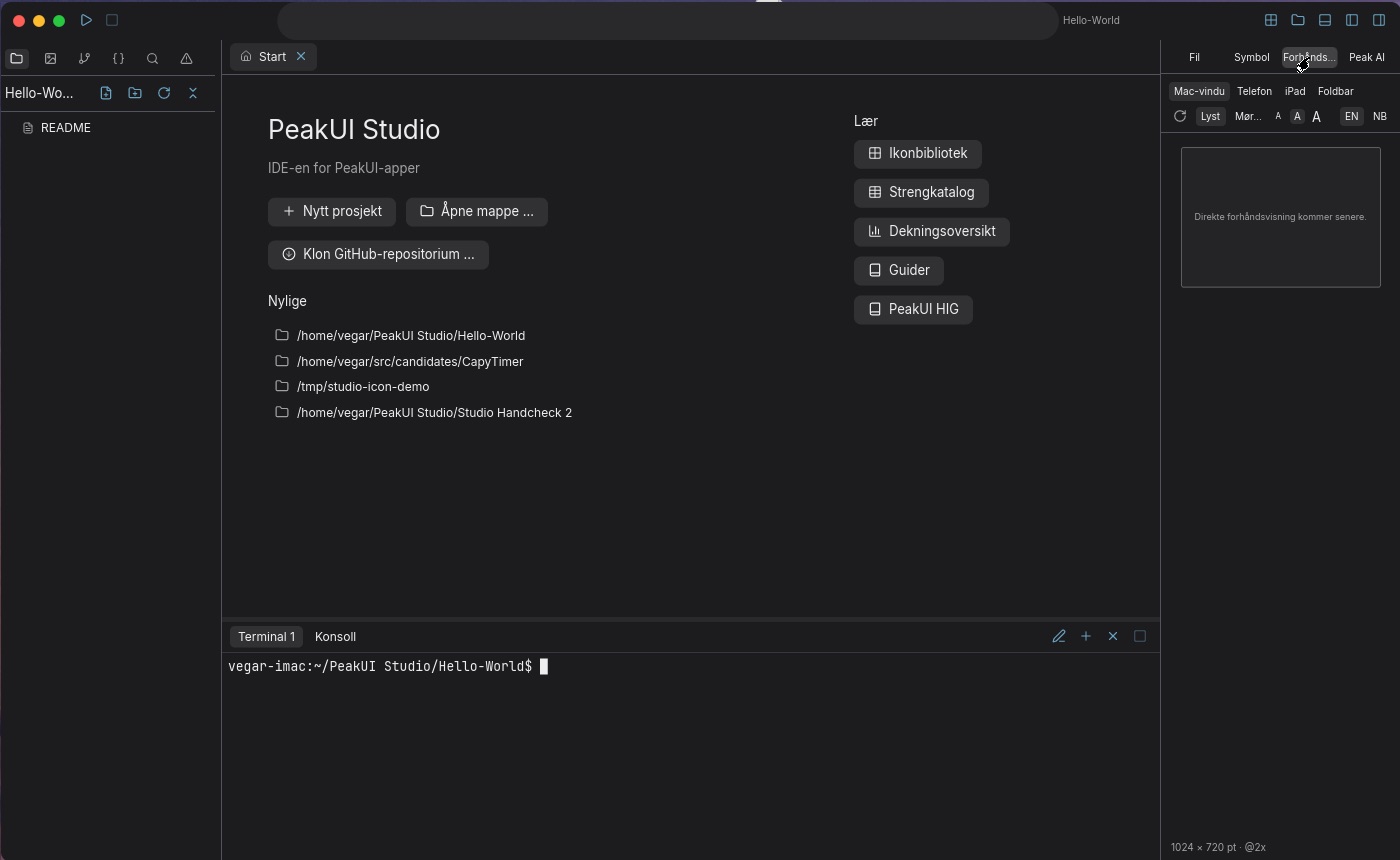
The Start page: New Project, Open Folder, Clone GitHub Repository, the projects opened before, and Learn. Shown in Norwegian.
01 · Open
Start from nothing, or from GitHub.
New Project makes an app with one App.swift. Open Folder opens any SwiftUI project, Xcode's included. Clone GitHub Repository takes the address of a public repository, saves it in your PeakUI Studio folder and opens it, ready to check or run.
Learn sits on the same page: the icon library, the String Catalog, the Coverage overview, the Guides and the PeakUI HIG.
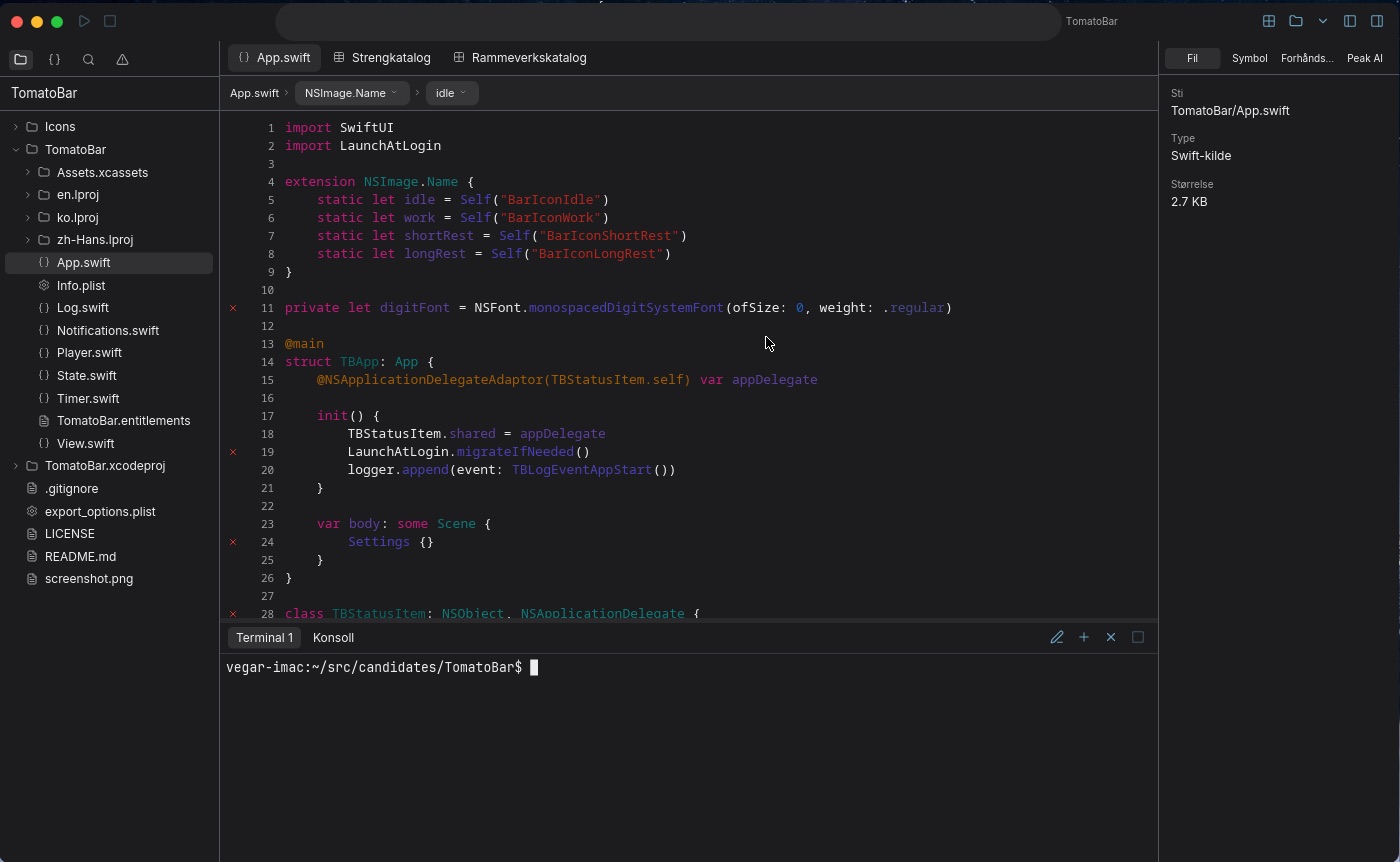
TomatoBar, an open-source Mac app, opened straight from its Xcode project. Its files in the navigator, its problems in the gutter.
02 · Read
Swift, coloured by PeakUI's own parser.
The editor colours Swift from PeakUI's own tokens: keywords, your types and Apple's, calls, strings with interpolated code, attributes and #if. The jump bar above it follows the file, its type and its member. The navigator finds text in every file and lists the open file's symbols.
Today the editor reads; typing in it comes with PeakUI's editable code view, which is next in PeakUI's queue. The terminal below the editor is a real shell for everything else.
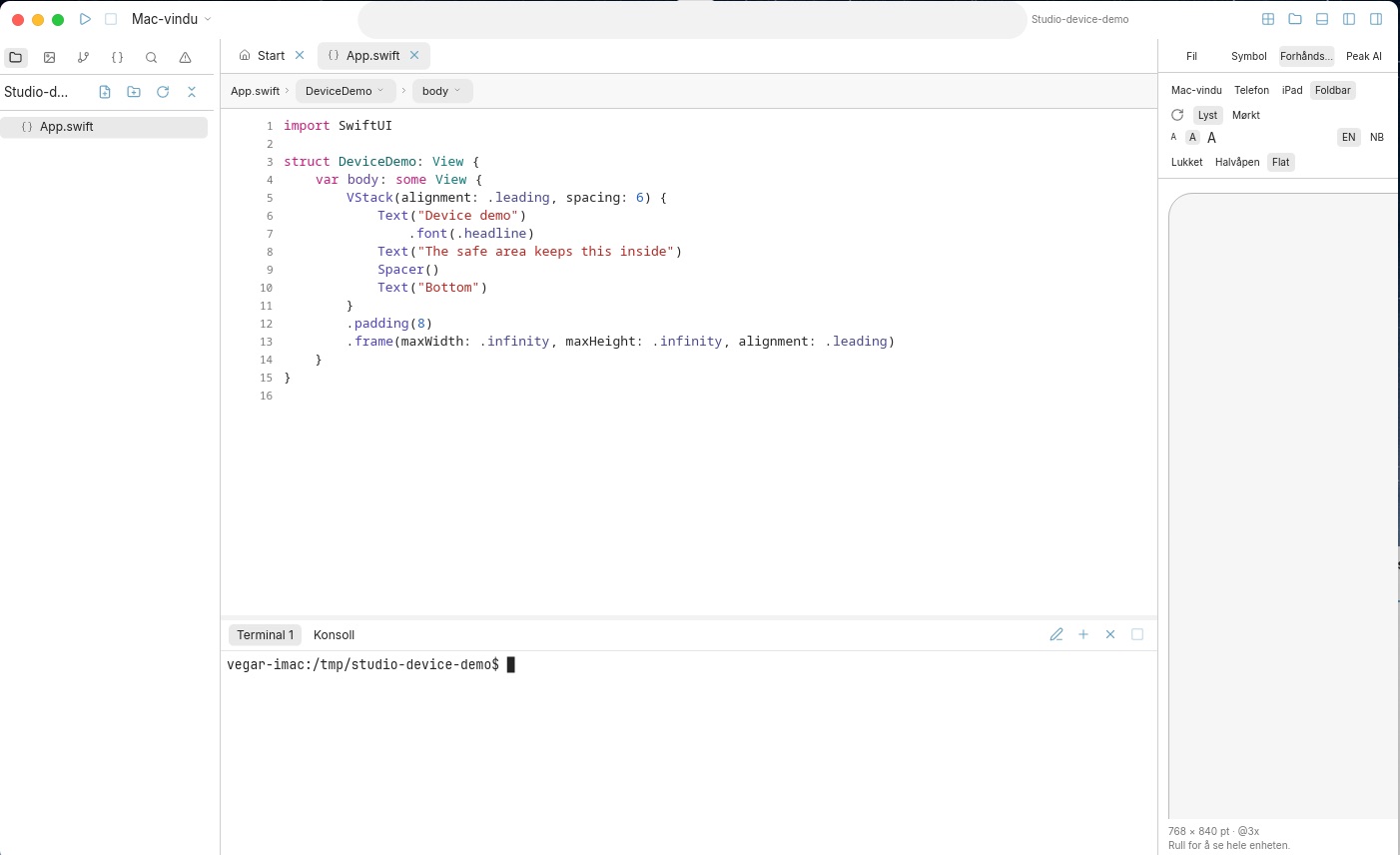
The jump bar (App.swift › DeviceDemo › body), the editor, a terminal, and the Preview with a foldable open flat.
03 · Preview
Every device, without leaving the editor.
The inspector's Preview draws the open app inside a Mac window, a phone (393 × 852), an iPad (820 × 1180) or a book-style foldable, closed, half open or flat, with its hinge between the two panes. Rotate turns it. The safe areas are the device's own.
Light and dark, three text sizes and English or Norwegian redraw the app at once. The frame is scaled to fit the pane, so the whole device is always in view.
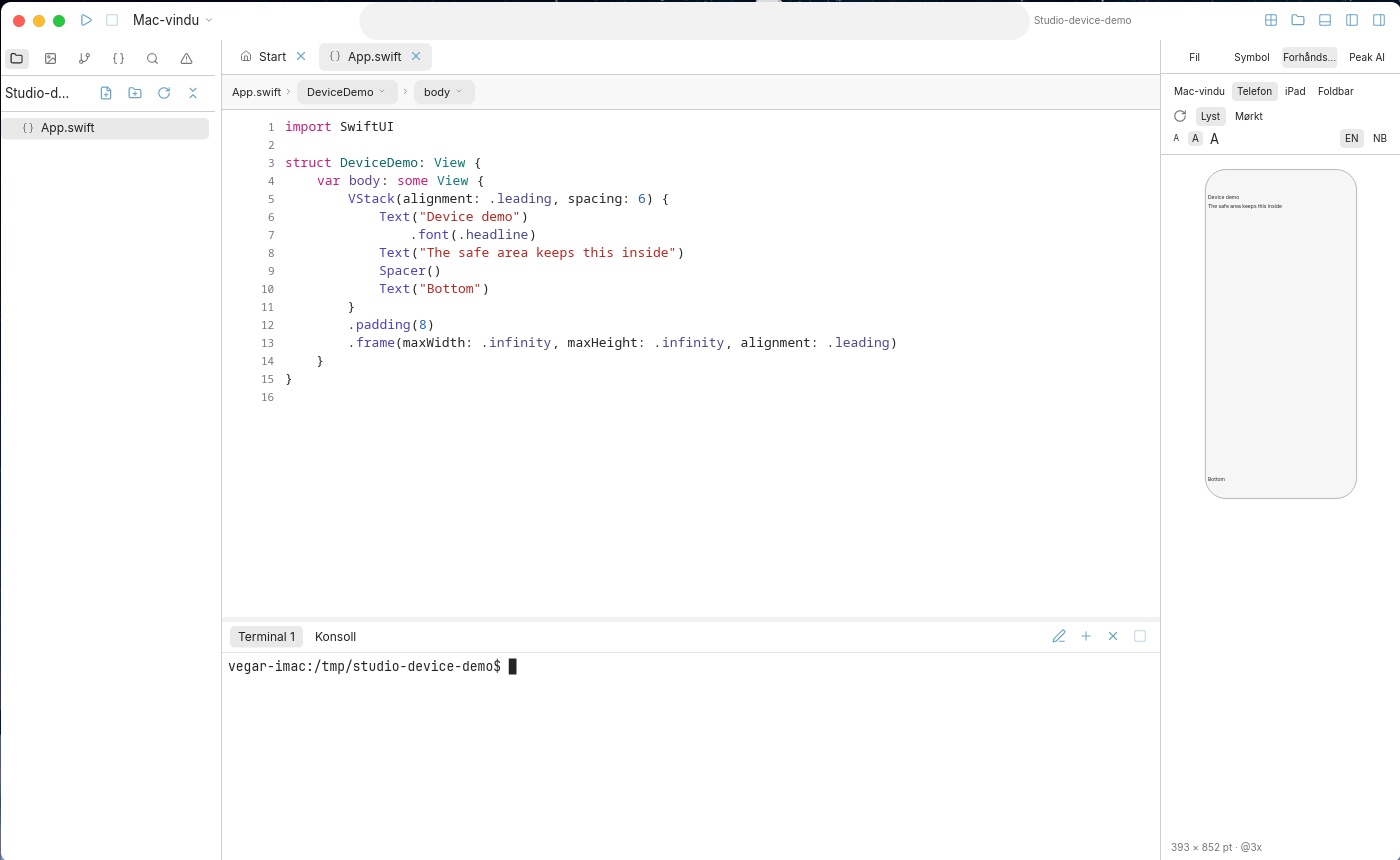
The phone frame in the Preview, scaled to fit, beside the code it draws.
04 · Run
Run it in its own window, or as a device.
Run (⌘R) starts the app in a window of its own; Stop (⌘.) ends it. The destination menu beside Run gives the window a device's size. The Console shows the app's output live, standard error in red, and says Running, Stopped or Exited.
The bottom area holds as many shells as you want, side by side, and can be resized or hidden with ⌘J.
05 · Check
swiftc's messages, before you run.
Studio checks the project when it opens. A problem puts a mark in the gutter with its message, and the Issues tab groups them by file: errors, warnings, and names PeakUI accepts but doesn't draw yet. Check runs the checker again, with its output in the Console.
The Framework Catalog shows how much of SwiftUI, AppKit and Foundation PeakUI runs, name by name, and which app uses what. The String Catalog shows every text with its English, its Norwegian and its state.
06 · Commit
Git, in the same window.
Source Control shows the branch and every changed file: modified, added, deleted, renamed or new. Click one for its diff. Tick the files to include, write a message and press Commit. History lists the commits with their diffs, and Branches lists the branches.
Studio runs the project's own git, so the repository stays an ordinary one that Xcode, the terminal and GitHub read as before.
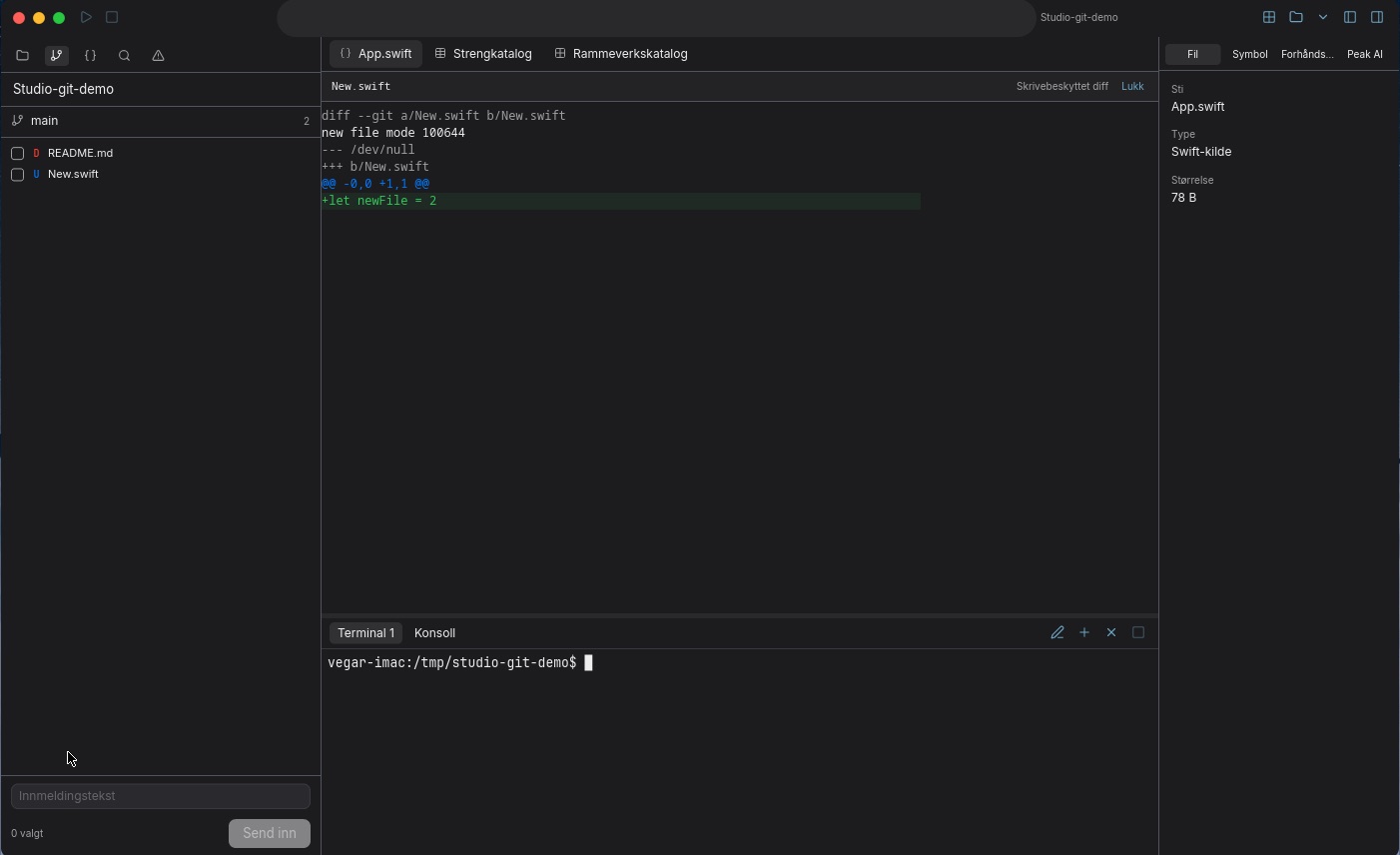
Source Control: the branch, the changed files, a diff, and the commit message under them.
07 · Make it yours
One SVG becomes the app icon.
The Assets tab lists the app's asset catalog. Choose SVG… writes every App Icon size, 16 to 512 points at 1x and 2x, into the same AppIcon.appiconset Xcode uses, and shows the icon as a Dock tile, in Launchpad and on a home screen, light and dark.
The Symbols window shows every symbol PeakUI draws, grouped and searchable, and copies Image(systemName:) for the one you choose.
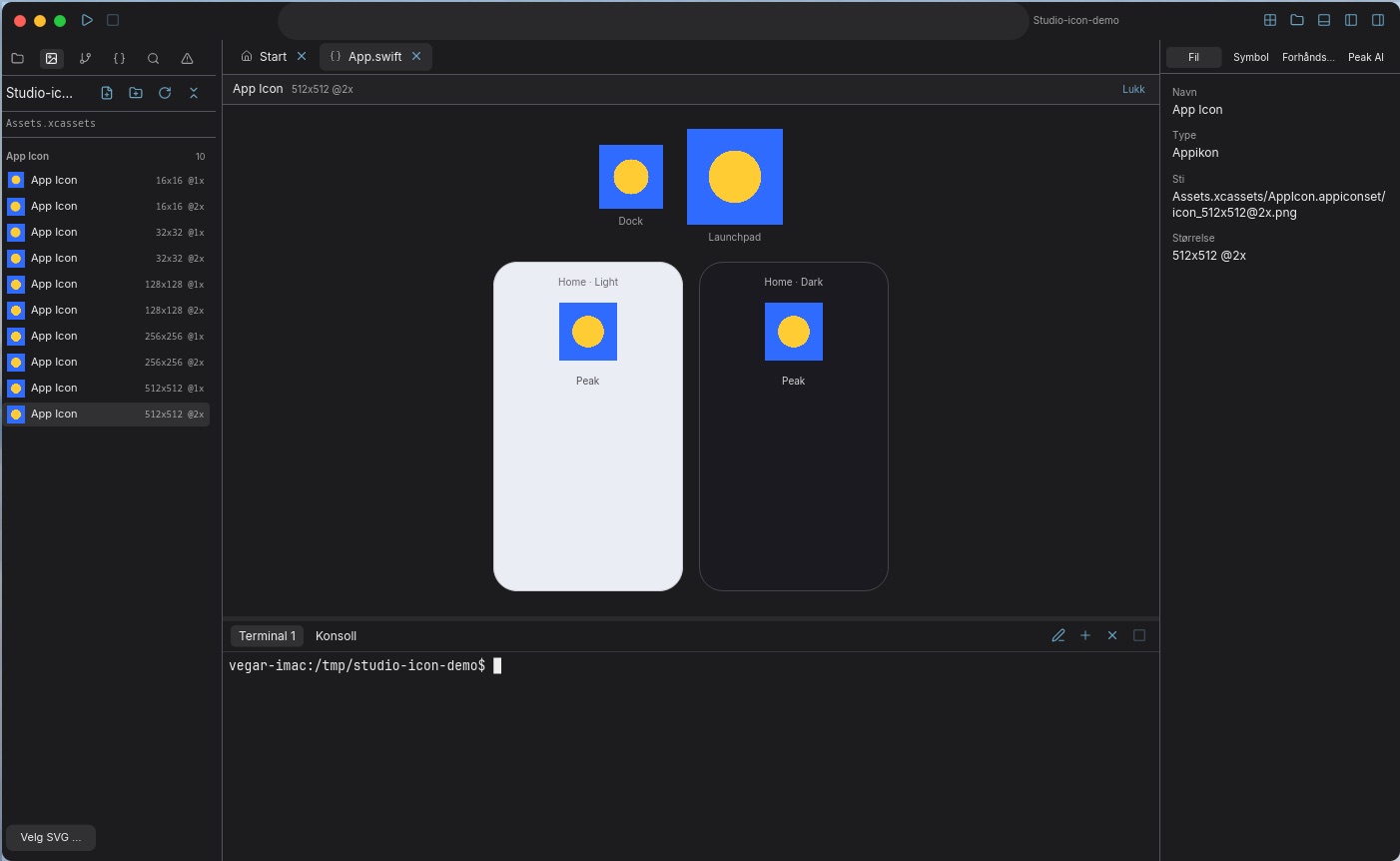
The App Icon: one SVG, every size, shown in the Dock, Launchpad and a home screen in light and dark.
08 · Learn
The courses and the HIG, inside.
Guides opens Learn PeakUI's courses, from a number in a window to bringing your own app over, and the PeakUI HIG, PeakOS's design guidelines. They open in Studio's Markdown view, drawn on the window's own background, with code coloured as in the editor and a Copy button on each block.
Edit Source switches the same page to the code editor and back, so the docs are files in the repository like everything else.
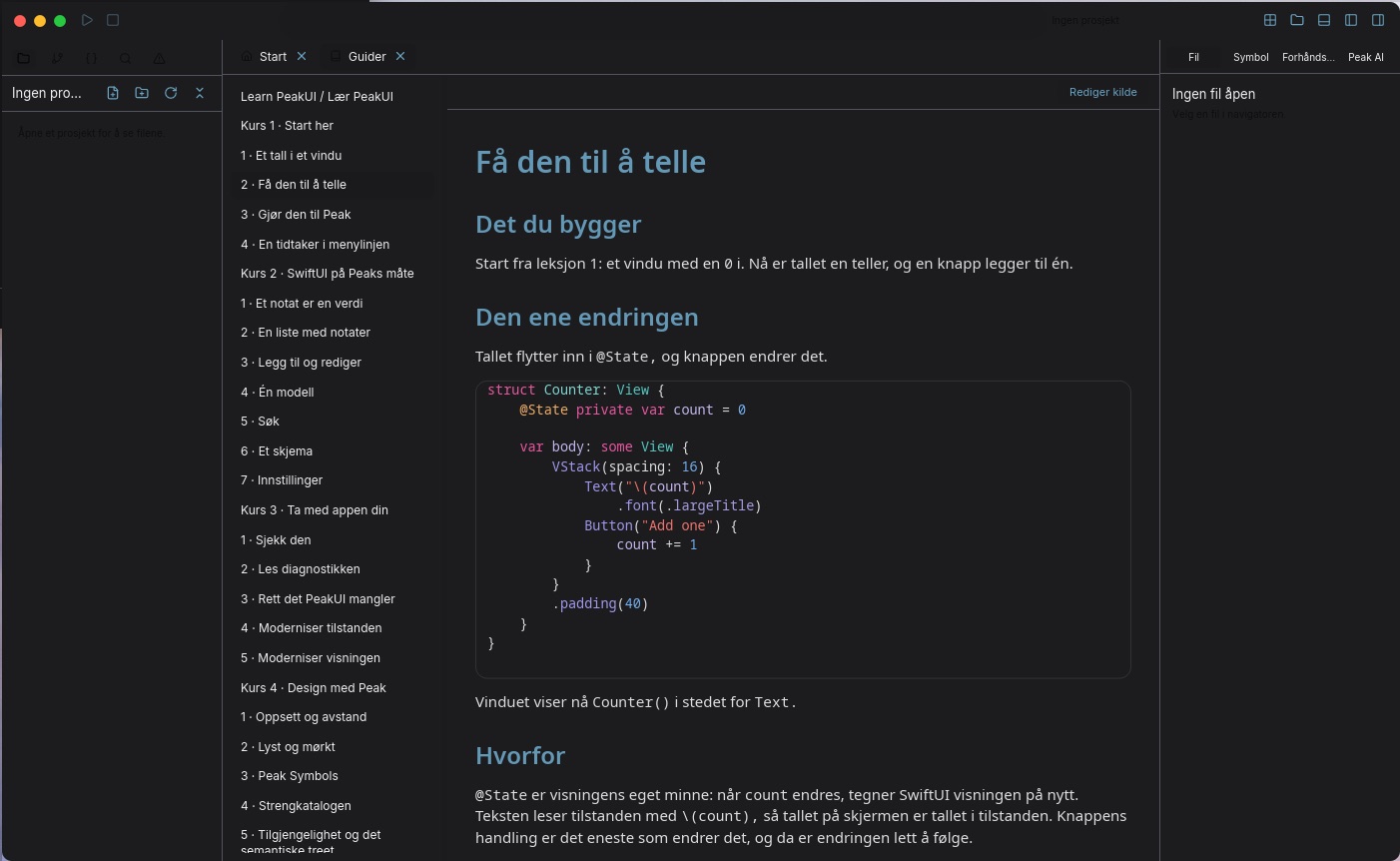
A lesson from course 1, in Norwegian: the course list at the left, the page and its Swift at the right.
What it enables
SwiftUI apps, made and brought here.
Coming
What Studio doesn't do yet.
Studio comes with PeakOS.
It's in the Dock. Its Help page names every button and key.

Peak
An operating system, its framework and its apps, made in Norway.
No cookies. Visits are counted anonymously, with nothing that follows you between sites or days.
© 2026 Vegar Lee Berentsen (Berentsen Labs)